# install.md
# Get Started
[](https://chromewebstore.google.com/detail/nbkhplnnajkikghffmincdbipjalpobi)
[](https://addons.mozilla.org/addon/cache-cleaner-addon)
[](https://chromewebstore.google.com/detail/nbkhplnnajkikghffmincdbipjalpobi)
[](https://addons.mozilla.org/addon/cache-cleaner-addon)
[](https://chromewebstore.google.com/detail/nbkhplnnajkikghffmincdbipjalpobi)
[](https://addons.mozilla.org/addon/cache-cleaner-addon)
[](https://github.com/cssnr/cache-cleaner/releases/latest)
[](https://github.com/cssnr/cache-cleaner/tree/master/src/locales)
[](https://github.com/cssnr/cache-cleaner/pulse)
[](https://github.com/cssnr/cache-cleaner?tab=readme-ov-file#readme)
[](https://github.com/cssnr/cache-cleaner?tab=readme-ov-file#readme)
[](https://github.com/cssnr/cache-cleaner/graphs/contributors)
[](https://github.com/cssnr/cache-cleaner/issues)
[](https://github.com/cssnr/cache-cleaner/discussions)
[](https://github.com/cssnr/cache-cleaner/forks)
[](https://github.com/cssnr/cache-cleaner/stargazers)
To get started [install the extension](#install) for your browser.
You can also check out the [features](#features), [usage](usage.md), and [options](options.md).
If you need help getting started, [support is available](support.md).
## Install
Microsoft Edge, Opera, Brave, Chromium, Vivaldi, Waterfox, and More.
Available for all major browsers including [Firefox Android](https://addons.mozilla.org/addon/cache-cleaner-addon).
- [Chrome Web Store](https://chromewebstore.google.com/detail/nbkhplnnajkikghffmincdbipjalpobi)
- [Mozilla Firefox Add-ons](https://addons.mozilla.org/addon/cache-cleaner-addon)
For more details see the [usage guide](usage.md) and review the [options](options.md).
[](https://addons.mozilla.org/addon/cache-cleaner-addon)
[](https://chromewebstore.google.com/detail/nbkhplnnajkikghffmincdbipjalpobi)
## Features
- Clear cache and reload site with a single key or button press
- Choose which cache items to clear or clear all data
- Clear cache for a specific site or the whole browser
- Option to clear Cache Storage in Firefox for individual sites
- Works in both Firefox and Chromium based browsers
::: info :rocket: Feature Request
Missing a feature? Let us know [what features](https://github.com/cssnr/cache-cleaner/issues/new?template=1-feature.yaml) you want to see...
:::
### Languages
The extension is localized in the following languages:
- Chinese (China) `zh_CN` - 中文(简体)
- English `en` - English
- French `fr` - Français
- German `de` - Deutsch
- Japanese `ja` - 日本語
- Korean `ko` - 한국어
- Persian `fa` - فارسی
- Portuguese (Brazil) `pt_BR` - Português (Brasil)
- Russian `ru` - Русский
- Spanish `es_419` - Español
:bulb: You can [view or edit](https://github.com/cssnr/cache-cleaner/tree/master/src/locales) the locales on GitHub.
::: info :books: Changing Languages
The only way to change your language in a web extension, is to change your browser's language, then restart the browser.
:::
---
# options.md
# Options
The options let you control how the extension functions, looks and feels.
- [Cache Options](#cache-options)
- [Extension Options](#extension-options)
- [Keyboard Shortcuts](#keyboard-shortcuts)
:robot: Most of the documentation on this page is AI generated!
## Cache Options
Control which data types are cleared when you run a site or browser cache operation. These selections determine what counts as a **Selected** clear — the counterpart to an **All** clear, which always removes every available type regardless of these settings.
Changes apply immediately to all future clear operations.
### Site Specific Settings
These options apply when clearing the cache for the **current site only**. They affect the _Clear Selected Site Cache_ action.
| Option | Description |
| ------------------- | -------------------------------------------------------------------------------------------------------------------------------------------------------------------------------------------------------------- |
| **Cookies** | Session tokens, login state, preferences, and any other key-value data stored by the site in your browser. Clearing cookies will sign you out of most sites. |
| **Index DB** | IndexedDB storage used by the site to persist structured data locally — commonly used by web apps for offline support or large local datasets. |
| **Local Storage** | Persistent key-value data stored by the site via the Web Storage API. Unlike cookies, this is never sent to the server but is retained across sessions until explicitly cleared. |
| **Service Workers** | Scripts that run in the background and can intercept network requests, enable offline functionality, and power push notifications. Clearing these forces the site to re-register its worker on the next visit. |
| **Cache Storage** | Resources cached by the site's service worker (e.g., HTML, CSS, JS, images) for faster loads and offline use. Clearing this removes those stored assets and the browser will re-fetch them from the network. |
### Global Browser Settings
These options apply when clearing cache **across all sites**. They are split into two groups: data stored per-site, and data belonging to the browser itself.
#### All Sites
These types are scoped to individual sites but cleared globally — across every domain — when performing a browser-wide cache clear.
| Option | Description |
| ------------------- | -------------------------------------------------------------------------------------------------------------- |
| **Cookies** | Cookies from all sites. Clearing this will sign you out of every site you're currently logged into. |
| **Index DB** | IndexedDB databases across all sites. |
| **Local Storage** | Local Storage data from all sites. |
| **Service Workers** | Service workers registered across all sites. Each affected site will re-register its worker on the next visit. |
#### Browser
These types belong to the browser itself rather than individual sites.
| Option | Description |
| ----------------- | ----------------------------------------------------------------------------------------------------------------------------------------------------------------------------------------------------------------------- |
| **Browser Cache** | The browser's HTTP cache — the stored copies of web resources (HTML, CSS, JS, images, fonts) used to speed up page loads. Clearing this will cause sites to fully reload all assets from the network on the next visit. |
| **Downloads** | The browser's record of downloaded files. This removes the entries from your download history but does **not** delete the actual files from your disk. |
| **Form Data** | Autofill suggestions saved by the browser from previously submitted forms, such as names, addresses, and search terms. |
| **History** | Your browsing history — the list of URLs and page titles the browser has recorded. |
| **Passwords** | Saved login credentials stored in the browser's built-in password manager. _(Deprecated)_ |
| **Plugin Data** | Data stored by browser plugins such as Flash. _(Deprecated — most browsers have removed plugin support.)_ |
## Extension Options
General extension behaviour settings, including UI preferences and confirmation dialogs for each cache action.
#### Auto Reload Site
Automatically reloads the current tab after a site cache clear completes. This ensures the page immediately reflects the cleared state — particularly useful when clearing cookies or service workers, where a manual refresh would otherwise be required to see the effect.
Does not apply to browser-wide clear operations.
#### Show All Buttons
By default, the popup shows either site or browser cache controls depending on context. Enabling this option forces both the **Site Cache** and **Browser Cache** sections to appear in the popup at the same time, giving you quick access to all clear actions from a single view.
#### Default to Browser
When the popup opens, it defaults to the **Site Cache** tab. Enable this option to make it open to the **Browser Cache** tab instead. Useful if you clear browser cache more frequently than site cache.
#### Show Confirmation
Display a confirmation prompt before executing a cache clear. This adds a safety step to prevent accidental clears. Confirmations can be enabled or disabled independently for each cache action type:
| Action | Description |
| --------------------- | --------------------------------------------------------------- |
| **Site Cache** | Prompt before clearing the selected site cache. |
| **All Site Cache** | Prompt before clearing all data types for the current site. |
| **Browser Cache** | Prompt before clearing the selected browser cache. |
| **All Browser Cache** | Prompt before clearing all browser data types across all sites. |
:::warning
This does **NOT** work when using the [Context Menu](usage.md#context-menu) or [Keyboard Shortcuts](usage.md#keyboard-shortcuts).
:::
#### Show Context Menu
Adds a **Cache Cleaner** submenu to the browser's right-click context menu, letting you trigger cache actions from any page without opening the popup. Disable this to remove the submenu entirely if you prefer a cleaner context menu.
When enabled, the following items can appear in the context menu:
| Item | Description |
| --------------------------- | ---------------------------------------------------------------- |
| **Clear Site Cache** | Clears the selected data types for the current site. |
| **Clear All Site Cache** | Clears all data types for the current site, ignoring selections. |
| **Clear Browser Cache** | Clears the selected data types across the whole browser. |
| **Clear All Browser Cache** | Clears all browser data types, ignoring selections. |
| **Open Popup** | Opens the extension popup panel. |
| **Open Side Panel** | Opens the extension side panel. |
| **Open Options** | Opens this options page. |
> **Note:** Individual context menu items can be shown or hidden independently using the checkboxes above. Disabling **Show Context Menu** removes all items at once.
#### Show All Items on Toolbar Icon
When you right-click the extension's toolbar icon, by default only a minimal set of actions are shown. Enabling this option adds all available context menu actions to the toolbar icon's right-click menu, matching the full set available in the page context menu.
#### Show Deprecated Options
Some cache types are deprecated — they were part of older browser APIs that are no longer actively used (such as App Cache, Web SQL, and File Systems). These options are hidden by default to keep the interface clean.
Enable this to show deprecated cache types in the Site and Browser settings, in case you need to clear legacy data from older web applications.
#### Show Release Notes on Update
Automatically opens the Release Notes page when the extension is updated to a new version. This keeps you informed of new features, bug fixes, and any changes to how cache clearing behaves.
Disable this if you prefer to check for updates manually.
#### Options Page Background
The Options page can be set to an Image URL, Video URL or None.
## Keyboard Shortcuts
Manage the keyboard shortcuts used to trigger cache-clearing actions and open extension panels directly from the browser, without needing to open any UI.
Shortcuts can be customized through your browser's built-in extension shortcut manager. Click **Manage Keyboard Shortcuts** to open it.
| Description | Shortcut |
| ----------------------- | -------------------------------------------- |
| Clear Site Cache | F4 |
| Clear All Site Cache | F6 |
| Clear Browser Cache | Not Set |
| Clear All Browser Cache | Not Set |
| Open Popup | Alt+Shift+A |
| Open Side Panel | Not Set |
| Open Extension Panel | Not Set |
| Open Options | Alt+Shift+O |
Note: Shortcuts marked _Not Set_ can be assigned in your browser's extension shortcut settings. In Chrome, visit `chrome://extensions/shortcuts`. In Firefox, visit `about:addons` and click the gear icon.
:bulb: If you need help using the extension, [support](support.md) is available...
---
# support.md
# Support
[](https://github.com/cssnr/cache-cleaner/issues/new?template=1-feature.yaml)
[](https://github.com/cssnr/cache-cleaner/issues)
[](https://github.com/cssnr/cache-cleaner/discussions)
[](https://discord.gg/wXy6m2X8wY)
If you have any troubles using the application, or run into any issues, please let us know!
Every bug that can be reproduced will be fixed and Feature Request are highly desired.
Contributing is as easy as telling us [what features or changes](https://github.com/cssnr/cache-cleaner/issues/new?template=1-feature.yaml) you want to see next…
[[toc]]
### GitHub Discussions
If you have a question or need help with anything,
start a discussion in [General](https://github.com/cssnr/cache-cleaner/discussions/categories/general)
or [Q&A](https://github.com/cssnr/cache-cleaner/discussions/categories/q-a).
If you want to see a new feature, submit a [Feature Requests](https://github.com/cssnr/cache-cleaner/issues/new?template=1-feature.yaml).
[](https://github.com/cssnr/cache-cleaner/discussions)
### GitHub Issues
If you run into any problems or find a bug, please [open an issue](https://github.com/cssnr/cache-cleaner/issues).
**These reports are treated with the highest priority.**
[](https://github.com/cssnr/cache-cleaner/issues)
### Discord Chat
You can chat with us about anything [on discord](https://discord.gg/wXy6m2X8wY).
From here you can contact me directly, `Shane@111150265075298304`.
[](https://discord.gg/wXy6m2X8wY)
More information available at: [https://cssnr.com/](https://cssnr.com/)
[{ width="360" }](https://ko-fi.com/cssnr)
---
# usage.md
# Usage
There are many ways to use the extension depending on your preference.
[[toc]]
## Toolbar Popup
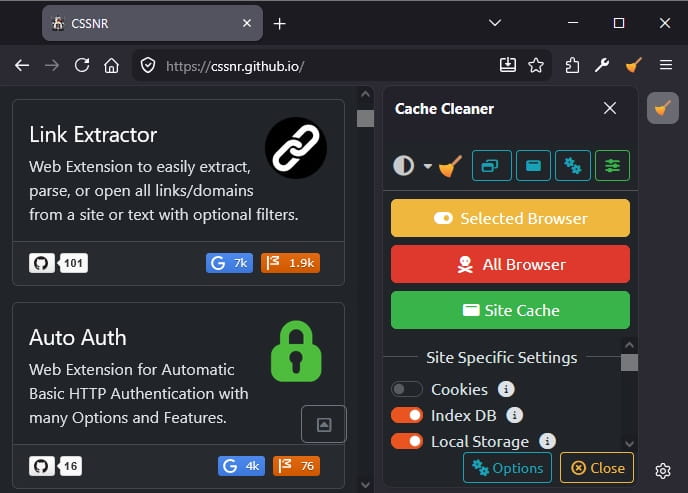
The popup is accessible from your browsers extension **toolbar icon**.
You may need to pin the icon to the toolbar depending on your browser.
The popup can also be shown using a [keyboard shortcut](#keyboard-shortcuts),
the [context menu](#context-menu), or the [side panel](#side-panel).
**Popup Features**
- Show All Buttons or Only Site/Browser
- Set Default to Site or Browser
- Set Cache Options On-The-Fly
- Show Estimated Cache Size
- Quick Options Overlay
For more details see the [options page](options.md#extension-options).
## Context Menu
The right-click context menu can be enabled/disabled from the [options page](options.md#show-context-menu).
You can also choose which items show up on the context menu.
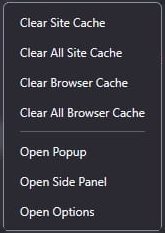
:bulb: If you choose only 1 item to be displayed, there won't be a submenu to navigate.
## Keyboard Shortcuts
You can assign keyboard shortcuts to all cache clearing functions, and activation of popup and panels.
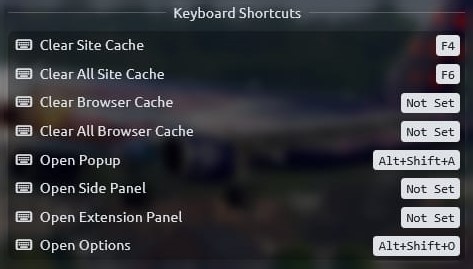
This varies based on your browser.
- Google Chrome: `chrome://extensions/shortcuts`
- Mozilla Firefox: https://mzl.la/3Qwp5QQ
For more details see the [options page](options.md#keyboard-shortcuts).
## Side Panel
While you can't view or clear the site cache directly,
you can toggle the [popup](#toolbar-popup) to manage site cache.
The side panel can be toggled a [keyboard shortcut](#keyboard-shortcuts), or the [context menu](#context-menu).
Otherwise, this includes all other features in the [popup](#toolbar-popup).
## Extension Panel
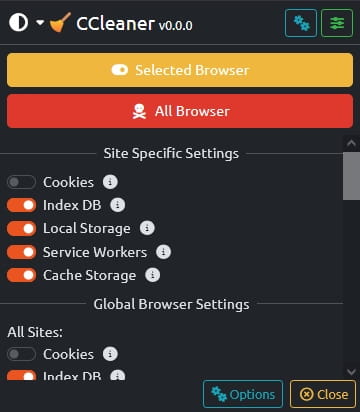
This is a pop-out panel in its own window that lets you manage browser cache only.
The extension panel can be toggled a [keyboard shortcut](#keyboard-shortcuts), or the [context menu](#context-menu).
:bulb: If you need help using the extension, [support](support.md) is available...