Usage

Remotes
Remotes are the heart of the application. A remote is a link to an image.
This can be a static image but you most likely have a link to a dynamic image or a redirect.
This application will refresh the image at the remote (image) url on a custom interval.
Example Remotes:
Remotes are managed from the Remotes page:
- Add with the
+button, then paste a url - Activate by tapping a remote — only one remote is active at a time
- Delete by long pressing a remote to select it, or by tapping the select all button, then deleting the selection
The first remote you add is activated automatically. Deleting the active remote activates the next one in the list.
Widget
You can add a stats widget to the home screen to display info and functionality.
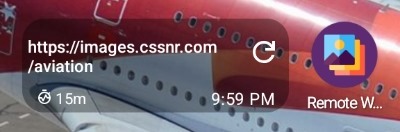
The widget displays the following information:
- Current Remote
- Update Interval
- Last Updated Time
- Screen Icons (Home/Lock) — only when Show Screen Icons is enabled
The widget has the following functions:
- Refresh Wallpaper (refresh button)
- Launch Application (tap anywhere else on the widget)
Appearance
The widget is styled from Settings -> Widget Settings:
| Setting | Values | Default | Description |
|---|---|---|---|
| Text Color | White/Black/Liberty | White | Color of the text and icons |
| Background Color | White/Black/Liberty | Black | Color of the widget background |
| Background Opacity | 0-100 | 35 | Opacity of the widget background |
| Show Screen Icons | On/Off | On | Shows the Home/Lock Screen Icons |
Screen Icons follow the Screens to Update setting — the Home icon is shown when the home screen is updated, the Lock icon when the lock screen is, and both when both are. With Show Screen Icons off, both icons are hidden and only the text remains.
Foreground Refresh
When disabled (default) the dynamic system theme (based on wallpaper) will not update until the screen is turned on/off or another event that triggers a theme update happens.
When enabled, the widget refresh button runs the update through an invisible foreground activity instead of a background broadcast. This causes the dynamic system theme to update immediately.
The drawback of the foreground activity is the desktop becomes non-interactive while the update is running. This time depends on device, network, and wallpaper size, but is usually only about 1-2 seconds.
Settings
Settings control how and when wallpapers update, how the home screen widget looks, and give access to app information and debugging tools.
App Settings
Widget Settings - Opens the Widget Settings screen to customize the home screen widget.
Crop Wallpaper for Device - When enabled (default), the image is scaled and center-cropped to match your device's screen size. This is required for the system's parallax effect (the wallpaper that shifts as you swipe between home screens) to work correctly. When disabled, the raw image is handed to Android as-is.
Limit Parallax Width - Caps how much wider than the screen the wallpaper canvas can be (up to 2.5x). A smaller canvas leaves less of the image hidden off-screen, so more of it is visible during parallax scrolling, at the cost of a larger center-crop. Only shown when Crop Wallpaper for Device is enabled. Off by default.
Screens to Update - Controls where the wallpaper is applied: the home screen, the lock screen, or both (default).
Update Interval - How often the wallpaper is refreshed in the background, from 15 minutes up to weekly. The default is 1 hour. Selecting Never Update disables scheduled updates entirely, which also disables Updates on Metered Connection.
Updates on Metered Connection - When enabled, background updates are allowed on metered networks like mobile data. When disabled (default), updates only run on unmetered networks such as Wi-Fi. Ignored while Update Interval is set to Never Update.
Disable HTTP Cache - A debugging option. When enabled, the app skips its normal conditional
request headers (ETag / Last-Modified) and re-downloads the full image on every update instead of
accepting a 304 Not Modified response. Off by default.
Remove Background Restriction - Android may block the app's background work to save battery, which delays wallpaper and widget updates. Tapping this requests an exemption from battery optimizations. Once the permission is granted, the item shows Permission Already Granted and can no longer be tapped.
Widget Settings Screen
These options are available on the Widget Settings screen (opened from App Settings).
Text Color - Sets the color of the widget's text and icons to white, black, or liberty. White by default.
Background Color - Sets the color of the widget's background to white, black, or liberty. Black by default.
Background Opacity - Controls how transparent the widget background is, from 0 (fully transparent) to 100 (fully opaque). 35 by default.
Show Screen Icons - Toggles the Home/Lock screen icons on the widget, which indicate which screen(s) were updated. On by default.
Foreground Widget Refresh - When enabled, the widget's refresh button runs the update through an invisible foreground activity instead of a background broadcast. This makes the dynamic system theme update immediately, but the home screen is non-interactive for the roughly 1-2 seconds the update takes.
App Information
Application Information - Shows a dialog with the package name, version name, and version code, plus links to the project website and GitHub repository.
Open Android Settings - Opens the system's App Info page for Remote Wallpaper, where you can manage permissions, storage, notifications, and other system-level settings.
Send Feedback - Opens a dialog with a text field for sending suggestions or bug reports directly to the developer. The item is disabled after feedback has been sent.
Debugging
Enable Crash Reporting - When enabled (default), an anonymized crash report is sent automatically after an unhandled crash. See Crash Reporting below for details on what is collected.
Enable Application Logs - When enabled (default), the app keeps a local log of wallpaper updates, scheduled work, and widget refreshes for debugging purposes. Logs are stored on-device only and entries older than 7 days are purged automatically.
View Logs - Opens the logs page where the recorded entries can be viewed, copied, shared, or deleted.
Crash Reporting
Without crash reporting, fixing a bug requires you to:
- Stop what you're doing and open a browser
- Go to the GitHub repo and create an Issue
- Explain exactly what you were doing when the app crashed
- Hope I can re-create the bug myself to get the stack trace
That's a heavy ask for an app that's already broken — it leaves you with a bad experience and me without enough data to fix it.
To close that gap without compromising your data or privacy, this app uses ACRA — an open-source crash reporting library. Reports are received by a self-hosted Acrarium backend that runs on my own infrastructure, so crash data doesn't go to any third parties — no Google or other big-data services.
You can turn crash reporting on or off at any time with a toggle on the Settings page.
What Gets Collected
ACRA only sends reports when the app hits an unhandled crash. By default, it only sends the technical context needed to diagnose the crash:
- The stack trace of the crash, plus the app and Android versions
- Basic device context — e.g. the device model and OS version
- A short extract of the app's own logcat (the last ~200 lines)
It does not track usage or activity, collect a device identifier, or send system or other apps' logs. Each report is anonymized and sent directly to my server, so only I receive the data.
Support
These docs are still a work in progress and may not be complete.
If you need help getting started or run into any issues, support is available!